

If you are charting after a 12-hour shift, the last thing you want is to fight with your keyboard. I found this out the hard way at my own desk. For months I was using a borrowed laptop keyboard and an old wired mouse jammed up against a stack of paperwork. My wrist ached. The cord kept pulling off the edge. I finally looked at what a proper wireless combo would cost, and the number that came back surprised me. The Logitech MK345 was sitting at a budget price. The Logitech MX Keys Combo, which reviewers kept calling 'premium,' was significantly more expensive. That is a real gap for someone on a nursing budget.
So here is the short answer before we go any further. For most home office workers, especially those doing documentation, spreadsheets, or email on a tight budget, the MK345 wins. The MX Keys Combo is a genuinely nice piece of gear, but the price premium buys you things that most everyday typists will not notice or need. Let me show you exactly why.
| Category | MK345 (Left) | MX Keys Combo (Right) |
|---|---|---|
| Price | Moderately priced | High-end |
| Keyboard Type | Membrane, full-size | Low-profile scissor switch |
| Mouse Included | Yes, M345 wireless mouse | Yes, MX Master 3S |
| Palm Rest | Built-in, integrated | None (sold separately) |
| Wireless Connection | 2.4 GHz USB receiver | Bluetooth + USB receiver |
| Battery Life (keyboard) | 36 months (2 AA batteries) | 10 days (rechargeable) |
| Backlighting | No | Yes, smart per-key backlight |
| Multi-device Pairing | No, single device | Yes, up to 3 devices |
| Weight (keyboard) | Lighter | Heavier, premium feel |
| Best For | Budget home office, single computer | Power users, multiple devices |
Where the MK345 Wins
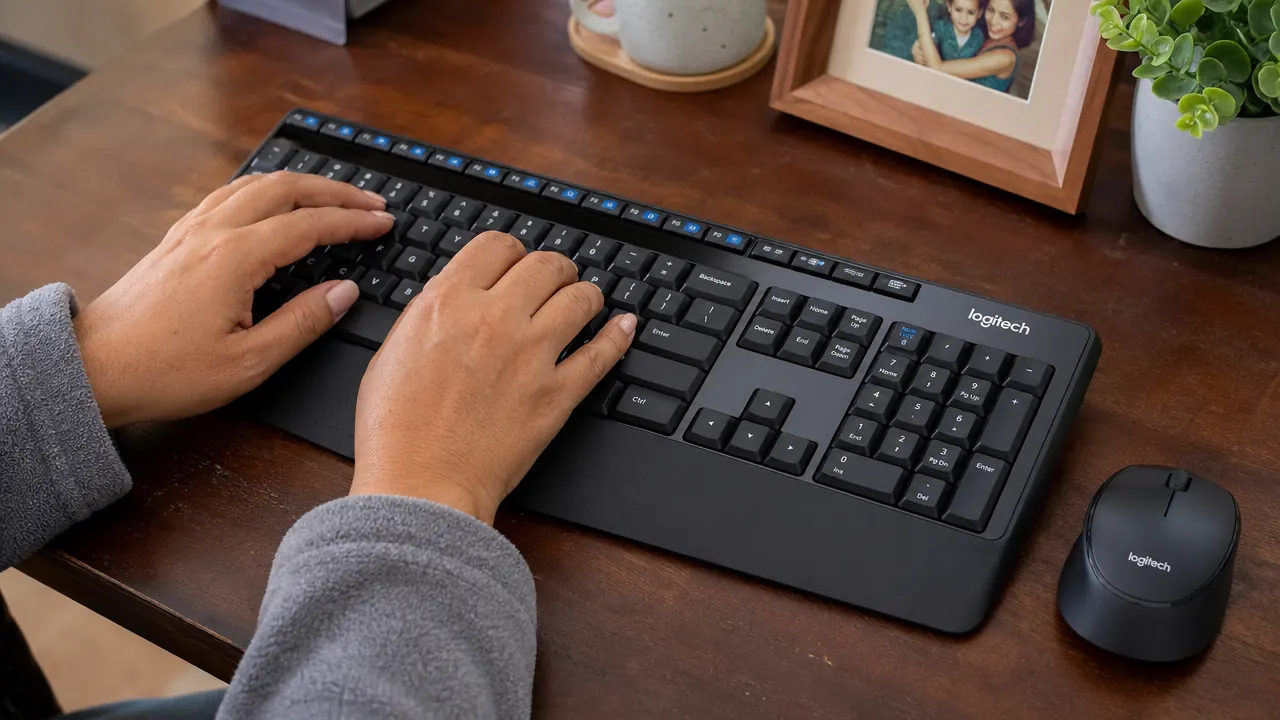
The MK345's biggest advantage is not what it has. It is what it removes from the equation. You plug one small USB receiver into your computer and you are done. The keyboard and mouse both connect through that single receiver. No Bluetooth pairing. No switching modes. No 'why is my keyboard not connecting this morning' problem before a work call. For anyone running a single Windows or Mac computer at home, this plug-and-forget setup is genuinely more reliable in daily practice than Bluetooth.
The built-in palm rest is the other thing that quietly matters. When you type for two or three hours straight, your wrists are resting on something the whole time. The MK345 builds that support directly into the keyboard body. It is cushioned, slightly textured, and sized correctly for a full-hand typing position. The MX Keys has no palm rest at all, which means you either type floating or you spend extra on a separate wrist pad. That gap starts to look less like a premium and more like an oversight for people who type a lot.
Battery life on the MK345 keyboard is also remarkable. Two AA batteries last up to 36 months under normal use. You will forget the keyboard even has batteries. The MX Keys runs on a rechargeable internal battery that lasts about 10 days with backlighting on. That sounds fine until you are mid-shift and get a low battery warning. Some people love rechargeable. Others just want the thing to work without thinking about it. For the Maria-at-10pm-after-a-long-shift scenario, replaceable AAs win.
Where the MX Keys Combo Wins
To be fair to the MX Keys Combo, it earns its premium in specific areas. The typing feel is noticeably better. The low-profile scissor switches have a satisfying, quiet click that membrane keyboards simply cannot match. If you are a writer doing 3,000 words a day, or someone who just loves the feel of a good keyboard, the MX Keys will feel significantly more refined under your fingers. It is not a gimmick. The tactile difference is real.
The MX Master 3S mouse that ships with the MX Keys Combo is also a legitimately excellent pointing device. It has a near-silent click, a hyper-fast scroll wheel, and an ergonomic shape that feels tailored for extended use. If you use your mouse for precision work, photo editing, or just prefer a premium feel after hours of clicking, the Master 3S is noticeably better than the M345 mouse that comes with the MK345. And the multi-device pairing on the MX Keys Combo is a genuine feature if you switch between a work laptop and a personal machine regularly.
The MK345 does not try to be fancy. It just works, every single time you sit down, without needing charging or pairing. That is worth more than it sounds at 10 PM after a long shift.
Still paying premium prices for a keyboard setup when an affordable option does the job?
The Logitech MK345 has over 41,000 reviews and a built-in palm rest. It is the wireless combo that home office workers keep recommending to each other because it never gets in the way.
Amazon Check Today's Price on Amazon →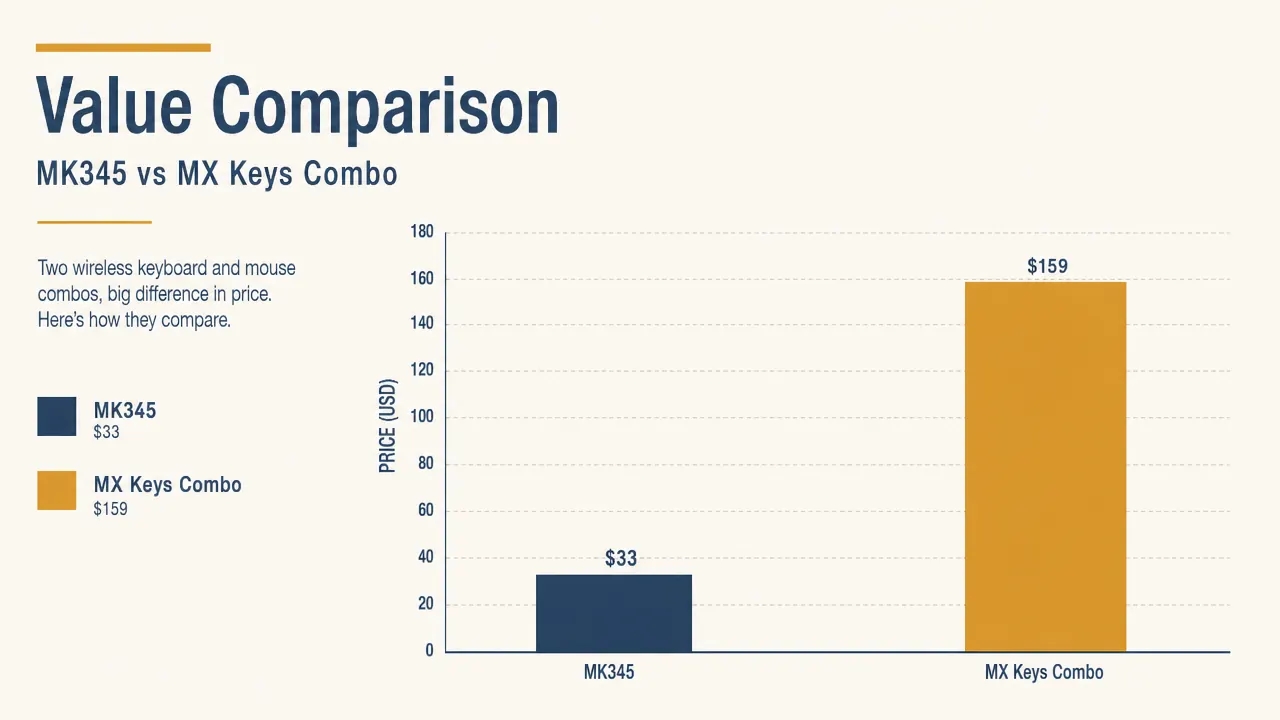
Typing Feel: The Honest Comparison
Membrane keyboards like the MK345 get dismissed by keyboard enthusiasts, but that reputation is unfair for everyday office typing. The MK345 has a soft, cushioned key press that is quiet and comfortable for long sessions. The keys do not feel cheap or spongy. They have enough travel and resistance that you do not accidentally double-press. For charting, writing emails, or entering data, the feel is perfectly adequate.
The MX Keys does feel better to type on. The keys are flatter and the actuation is crisper. But 'better' costs you considerably extra and removes your built-in palm rest. If you already have a wrist rest on your desk, that trade might make sense for you. If you are starting fresh and want a complete solution that works out of the box, the MK345 is the more sensible package.

Connection Reliability in a Real Home Environment
Bluetooth sounds modern and convenient, but in a home with a router, smart speakers, a phone, and maybe a kid's gaming device all sharing the 2.4 GHz spectrum, Bluetooth connections drop. It happens. The MX Keys Combo can be connected via USB receiver instead of Bluetooth, but the receiver is not a Unifying Receiver, it is a separate Bolt dongle. So you are still managing a USB slot for the keyboard plus the possibility of Bluetooth mode for a second device.
The MK345 connects only through its 2.4 GHz Unifying Receiver and it is rock solid. Logitech's Unifying technology has been refined over many years. In practice, the connection is faster and more stable than Bluetooth in most home environments. The receiver can be stored in the bottom of the mouse when not in use, which is a small but genuinely useful touch when you are packing a bag.

Who Should Buy Which
Buy the Logitech MK345 if you are working from home on one computer and you want a reliable, comfortable wireless setup that does not ask anything of you. If your current keyboard has a cord that gets in the way, if you are typing for two or more hours a day, if wrist comfort matters, or if you are on a budget, the MK345 is the right call. It has 41,000 reviews because it works and keeps working.
Consider the MX Keys Combo if you genuinely switch between two or three devices regularly, if you are doing creative or professional work where the typing feel matters emotionally, or if you have already budgeted for a higher-end setup and the MX Master 3S mouse is what you really want. It is a good product. It is just a premium product solving a budget problem for most home office workers.
One more thing worth saying plainly: the MK345 has outsold the MX Keys Combo by an enormous margin at a fraction of the price. That is not because people do not know about the premium option. It is because they try both and realize the expensive one does not dramatically improve their workday. For the nurse charting after a shift, the teacher grading papers at night, the remote worker grinding through emails: the MK345 is the one that earns its spot on the desk.
Ready to clear the cables and fix your wrist position tonight?
The Logitech MK345 ships with both the keyboard and the mouse, includes a built-in palm rest, and uses one tiny USB receiver. Budget-friendly for the full setup. Check the current price below.
Amazon Check Today's Price on Amazon →